Review and undo changes
After an agent edits your workspace, review the code and the evidence that it works. iolys shows tracked file changes in the Changes panel, with added and removed line counts and actions for opening a diff or undoing an available change.
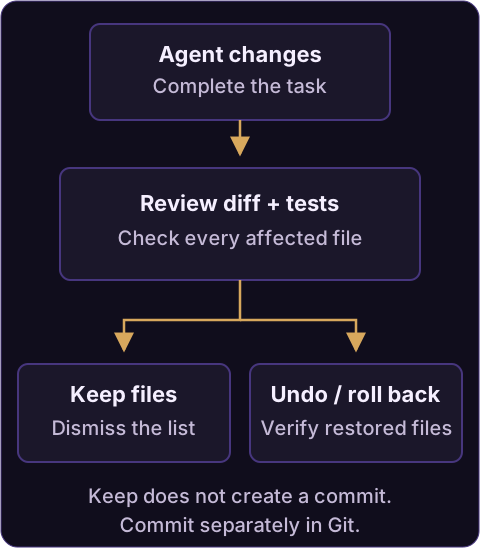
Workflow overview. Keep dismisses the reviewed list; use Git separately to commit the files.
Inspect the result
- Wait for the agent to finish, or use Stop generating if you need it to stop.
- Expand Changes using the chevron beside its title.
- Select View diff for a file to compare the before and after versions in Visual Studio.
- Check every affected file, including new files, and inspect the reported build or test results.
Line counts help you spot the scope of a change; they do not establish whether it is correct. Check behavior, compatibility, and any assumptions made by the agent. For changes produced through provider-native commands or external tools, also inspect your normal Git changes view so the review covers the entire workspace.
If the result needs adjustment, give a specific follow-up:
The retry loop now retries validation failures. Preserve the existing behavior
for those failures and add a test that distinguishes them from timeouts.
Keep the changes
Select Keep when you are done with the current list. It dismisses the list while leaving the files as they are.
Keep is not a Git commit. Use your usual Git workflow to stage, commit, push, or open a pull request. Because dismissing clears iolys's current changes list, review any rollback you might need before choosing Keep.
To gain reading space without dismissing the list, collapse Changes instead. New changes update its count while it remains collapsed.
Undo one file
Use Undo this change beside a file when the action is available. iolys uses its tracked change information to restore the earlier state, including reversing supported file creations or moves.
Read the outcome in Chat. An unavailable undo action or a failure message means the operation was not completed; do not assume the file has been restored. If the file has changed again since the tracked edit, inspect its current contents and use the diff or Git history to decide what to retain.
Roll back the tracked group
Open Settings > Rollback last changes to reverse the currently tracked reversible changes together. This action is available when a rollback snapshot exists and the agent is not processing a request.
Rollback concerns the changes iolys has tracked. It does not reset a branch, retract a pushed commit, reverse a remote action, or replace a repository backup. Verify the resulting files after a rollback, particularly if another process or person has edited the workspace.
Verify before committing
Ask the agent to run the relevant build and tests, or run them in Visual Studio. A useful closing request is:
Run the tests affected by these edits. Summarize what changed, what you verified,
and any checks you could not run.
See the tool reference for build and test capabilities. For concurrent tasks, parallel workspaces keep each task's files and build state separate.