MCP servers
Model Context Protocol (MCP) connects iolys to additional tools, such as a documentation service, issue tracker, or database integration. Configure a server once and its enabled tools become available to selected models with tool support.
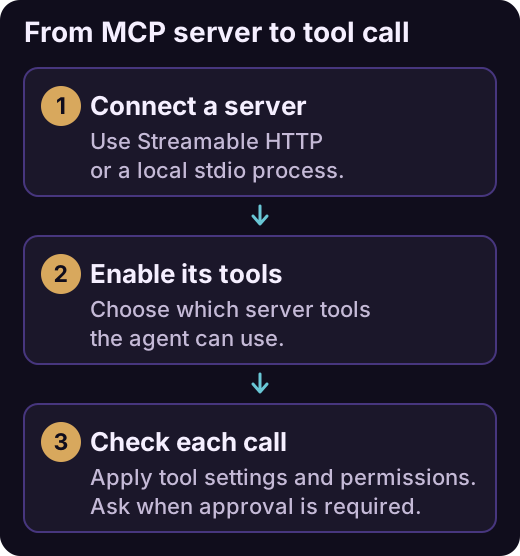
Connecting a server makes its tools available for selection. Every call remains subject to tool settings, agent restrictions, and permissions.
Add a custom server
- Open Tools and Skills, select Tools, then + > Add custom MCP server.
- Choose the Connection type: Streamable HTTP or stdio.
- For HTTP, enter the Server URL. Remote endpoints must use HTTPS; plain HTTP is accepted only for loopback addresses.
- For stdio, enter the executable in Command and each argument on its own line in Arguments (one per line). The required executable must be installed.
- Choose a Destination: Solution for the current solution or Global for all solutions.
- Expand Advanced options to set a stable server identifier, environment variables, or Enabled on save.
- Select Test connection, check the result, and Save.
A failed test can still be saved, but the server is saved off with its diagnostic visible. New HTTP configurations use Streamable HTTP; legacy HTTP+SSE is not the supported setup path.
For an HTTP endpoint requiring a bearer token, set MCP_AUTHORIZATION to the complete authorization value, such as Bearer <token>. Follow the server's authentication requirements and use its complete MCP endpoint, rather than its website address.
Browse a registry
Choose + > Add from MCP registry to open MCP Server Manager. The Browse tab searches the selected registry; GitHub MCP Registry is included by default.
Select a server, inspect its URL or command, complete required fields, choose its destination, and select Install. Registry entries can offer Streamable HTTP, npm through npx, or PyPI through uvx; local package options need the relevant runtime. Unsupported transports or incomplete options display a reason.
The Installed tab includes both manual configurations and registry installations. Manage registries... lets you configure additional compatible registry sources.
Control server and tool access
Expand a server under MCP servers to enable or disable individual tools. Its actions menu offers Configure, Restart, Remove, and Edit. Edit opens the owning mcp_servers.json; Configure opens the connection and tool interface.
Each server has its own execution policy:
| Policy | Behavior |
|---|---|
| Ask before running all tools | Requests approval; the default. |
| Run all tools automatically | Saves automatic execution for this server. |
| Run all tools automatically (this session only) | Applies the automatic grant to the current session. |
These policies remain subject to chat permissions, tool enablement, agent restrictions, and chat mode. The server's Resources, Prompts, and Instructions tabs expose reference material; these are not silently converted into tools or merged into iolys instructions.
Share configuration and troubleshoot
Global servers are stored in %LOCALAPPDATA%\Iolys\mcp_servers.json. Solution servers use <solution-root>\mcp_servers.json. If scopes contain the same stable ID, solution settings take precedence over workspace settings, then user settings.
Stored environment values are protected with Windows DPAPI and tied to the Windows user. For a shared solution configuration, arrange credentials locally for each developer. When editing, leaving an existing stored environment value blank preserves it; NAME= removes it.
For Error, open Configure, correct the diagnostic, and reconnect. Cached means the last catalog is visible but execution needs a live connection. Unsupported means the selected model cannot receive these tool definitions. Check the endpoint, executable, credentials, and runtime before retrying.