Connect a provider
iolys brings your models and coding agents into one Visual Studio workflow. Add the providers you use, then choose a provider and model from the conversation picker. Your available models depend on your account, endpoint, installed CLI version, and model capabilities.
Choose a connection
| You want to use… | Start here | Authentication |
|---|---|---|
| A Claude subscription through Claude Code | Claude Code | Browser sign-in in the managed CLI |
| Codex from Visual Studio | Codex | Interactive sign-in in the managed CLI |
| A Kimi Code account | Kimi | Browser or device authorization |
| A Kiro account | Kiro | Sign in with the managed Kiro executable |
| OpenAI, Anthropic, Gemini, Groq, or NVIDIA NIM | API providers | Provider API key |
| Several model vendors through one API | OpenRouter | OpenRouter API key |
| DeepSeek models and native Web Search | DeepSeek | DeepSeek API key |
| Models included in an OpenCode Go subscription | OpenCode Go | OpenCode API key |
| Local models or your own Ollama server | Ollama | Server URL |
| Your organization's Databricks Model Serving endpoints | Databricks | Workspace URL and token |
| A compatible proxy or self-hosted gateway | Compatible endpoints | Gateway URL and its required credentials |
Add your first provider
- Install iolys and open its chat window.
- Open Manage Models and select Add Provider.
- Choose a provider and complete the setup in its guide.
- Wait for its model catalog to load. API providers usually offer Test Connection; CLI providers offer Connect.
- Return to Chat, select a model, and follow the quickstart.
For managed coding agents, iolys provides installation, version selection, updates, and removal. An existing CLI on your system does not replace the iolys-managed executable. Claude Code, Codex, and Kimi also use their own managed profiles, so sign in from iolys even if another application is already connected.
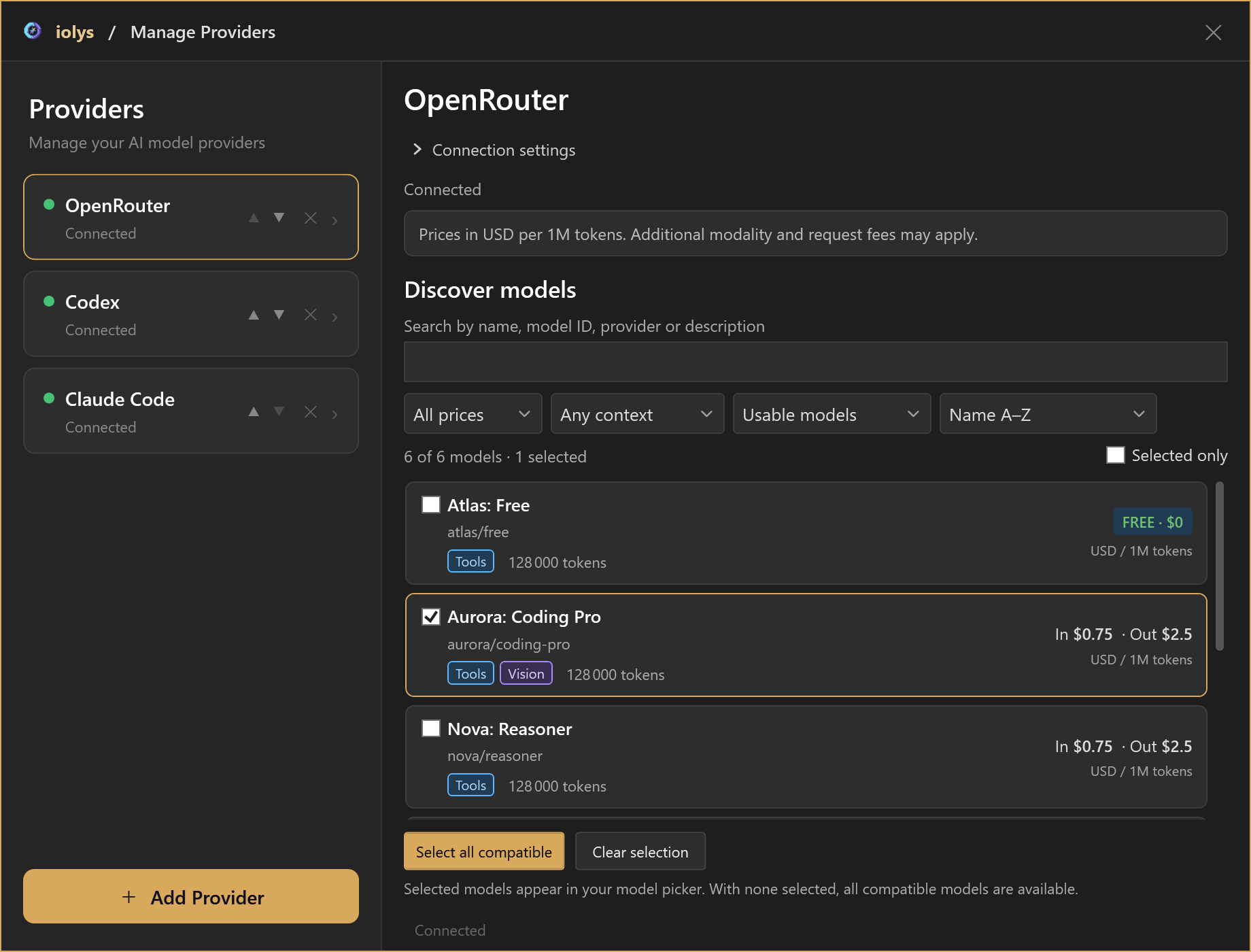
Switch connections on the left and manage the selected provider on the right. This OpenRouter catalog shows demonstration models and prices.
Read model capabilities
Tools identifies models that can use development tools. Vision indicates image input support. Thinking indicates reasoning support; adjustable reasoning effort is available only when the integration has valid choices for that model. See reasoning and speed for the available controls.
Capabilities differ between providers and models. A model name or a connected status does not guarantee remaining quota, image support, or access to every native provider tool. Use the current catalog and the individual provider guide.
Choose tools, permissions, MCP servers, and skills for the task. Provider-native tools can have different controls from shared iolys tools.
Check usage
Open Usage when the selected provider supports it. Account quotas, per-conversation tokens, estimated costs, and credits measure different things. An unavailable value means iolys could not obtain it; it does not mean zero consumption. See usage and context.
Provider screenshots in these guides use demonstration models and account values. They illustrate the interface, rather than a current model catalog or pricing offer.