Tools and integrations
Tools let an agent inspect your solution, edit code, build, test, and work with connected services. The selected model must support tool calling. A model can still answer questions without it, but cannot perform the same development actions.
Configure tools for a task
- Open Tools and Skills in the chat toolbar.
- Select Tools and use Filter tools to find a capability.
- Expand a group to see its tools and enable the ones your task requires.
- Check Model tools and MCP servers as well as the built-in groups.
- Choose the appropriate permission mode before sending the task.
For a code explanation, reading and search tools are usually enough. Implementing a feature also needs writing tools, plus build/test tools to validate it. An enabled tool is available to the agent; enabling it does not run it immediately.
Understand the three sources
| Source | Purpose | Configuration |
|---|---|---|
| Built-in iolys tools | Workspace files, IDE context, commands, builds, tests, plans, and clarification. | Built-in groups in the picker. |
| Provider-native tools | Capabilities executed by the selected CLI or API, such as web search. | The model's tool group or provider settings, where supported. |
| External MCP tools | Capabilities exposed by a connected service. | Server and tool controls under MCP servers. |
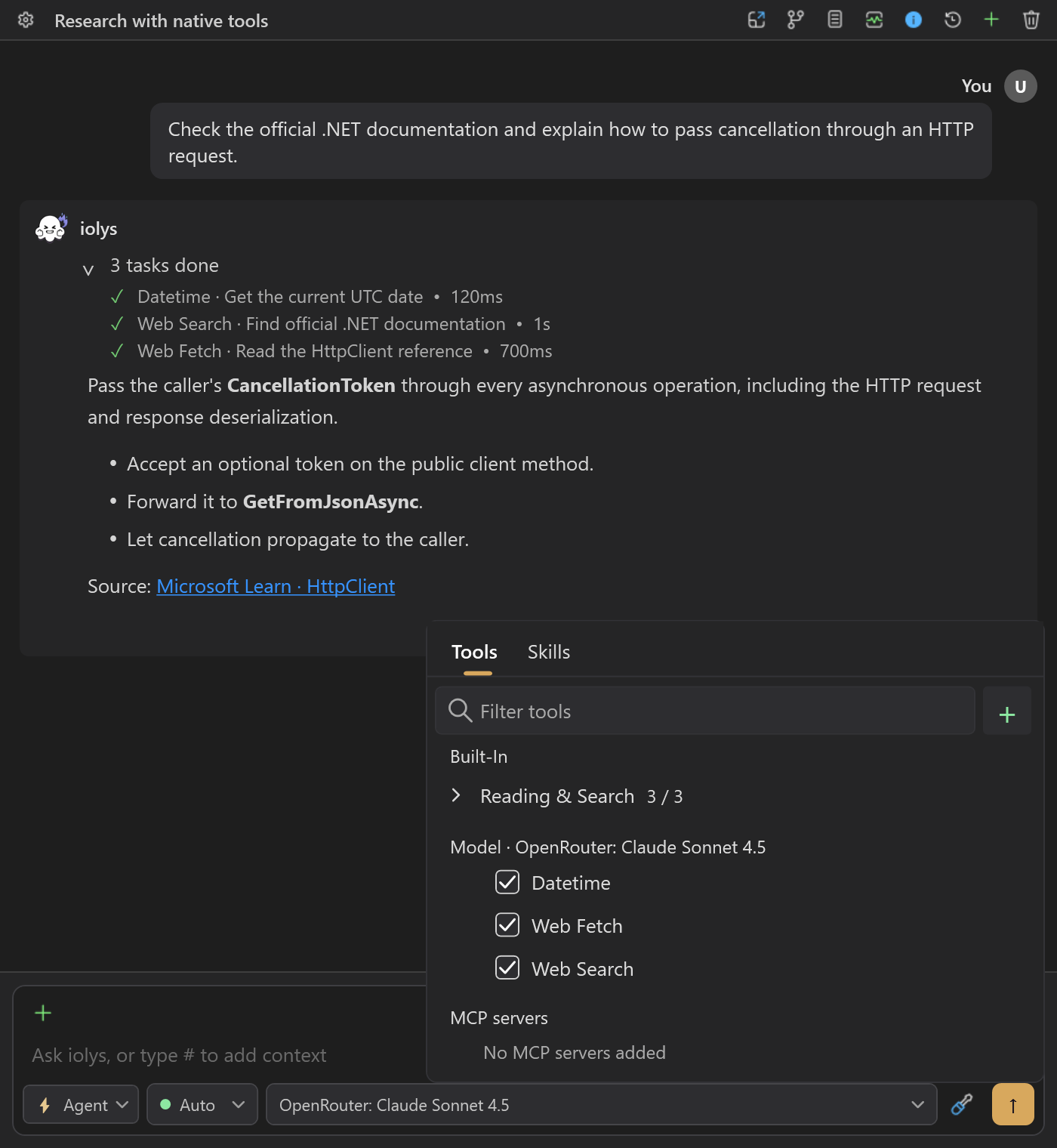
The picker separates built-in, model, and MCP tools. This OpenRouter example uses demonstration data; available tools depend on the provider.
The tool reference lists built-in identifiers. Providers expose different native tools, and some native entries are informational: This tool cannot be disabled during the session means the integration does not support an individual toggle.
Work with command integrations
Run CLI commands executes supported programs through managed integrations. Expand Integrations to check availability and configure read/write access. Available integrations include Git, GitHub, text utilities, and supported .NET operations; the picker shows Setup required when a dependency is missing.
For example, ask:
Inspect the current diff and recent commits, then explain the changes.
Do not edit or commit files.
The agent can use recognized Git reads through run_cli. Integration controls distinguish inspection from repository changes. A custom agent with selected tools needs both the command tool and the appropriate integration rights.
shell_command handles ordinary PowerShell scripts. Its script path uses Windows PowerShell 5.1, so PowerShell 7 syntax such as general &&/|| chaining is not supported. Recognized managed commands receive their integration-specific handling; arbitrary scripts follow the separate shell approval flow.
Why a tool may be unavailable
The effective catalog combines the selected provider and model, chat mode, enabled tools, the active agent definition, connected MCP servers, and dependency availability. Changing one of these can change the available tools.
Check these in order when an agent cannot perform an action:
- Confirm the selected model supports tools.
- Check whether Plan mode restricts the action.
- Check the tool's toggle and the active custom agent's selection.
- Inspect command integration rights or the MCP connection status.
- Read any approval request or failed tool result before retrying.
Provider setup is covered in Providers; reusable workflows belong in Skills. General configuration is in Settings.