Permissions
The permission selector controls how much an agent can do automatically. Start with Auto for routine development, or Interactive when you want to approve edits and command execution as they arise. Review the requested action and its target before granting broader access.
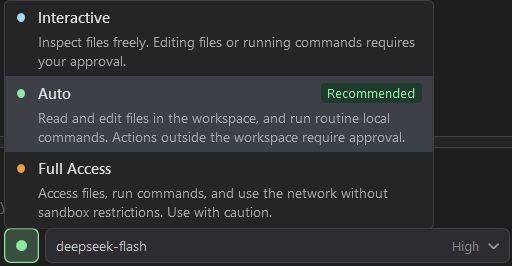
Choose an approval mode from the chat toolbar. Tool-specific blocks and mandatory confirmations still apply.
Choose a permission mode
Open the permission selector in the chat toolbar. A selection before a conversation sets the default for new sessions; changing it in an active conversation applies to that session.
| Mode | Everyday behavior |
|---|---|
| Interactive | Inspect workspace files freely; approve file edits and ordinary shell commands. |
| Auto | Allow workspace inspection and edits automatically. Routine recognized commands can run automatically; broader actions may still need approval. |
| Full Access | Permit ordinary file, command, and network operations with fewer restrictions. Tool-specific blocks and mandatory confirmations still apply. |
The compact selector may display Ask for Interactive or Full for Full Access.
Approvals depend on the operation, not just the selected mode. For example, the dedicated Run build and Run tests tools do not use the generic Interactive writing-tool confirmation. Ordinary shell scripts in Auto can require an execution grant. Sensitive managed Git/GitHub operations may always request confirmation, even in Full Access.
Keep mode and permissions separate
Agent and Plan determine which tools can be used. Permission modes determine which eligible operations need approval.
Plan disables ordinary file editing, deletion, custom-agent/skill creation, and unrestricted shell scripts. Recognized managed CLI reads remain available. Planning tools, builds, and tests can also run in Plan; these may produce plan files or build/test artifacts. Treat Plan as an investigation workflow, not an operating-system sandbox or a guarantee of zero filesystem changes.
Tool-specific workspace boundaries still apply. Some file tools can request access outside the workspace; others reject such paths. Enabling Full Access does not make every tool accept every path.
Manage command integration rights
Open Tools and Skills > Tools, then expand Run CLI commands > Integrations. Depending on the integration, choose:
- Read: Allow, Always ask, or Block.
- Write: Follow policy, Always ask, or Block.
These per-chat overrides persist across reconnects and provider switches. Always ask and Block remain effective in Full Access. A disabled parent tool or restrictive custom agent still limits access.
The controls apply to managed direct invocations through run_cli and recognized invocations through shell_command. They do not turn arbitrary shell scripts into a constrained execution environment.
Review and revoke grants
Approval prompts can offer one-time or session permissions according to the action. Review the scope before choosing. The permission selector shows session grants and lets you revoke them for that conversation. Revoking a grant affects future operations; it does not cancel an operation already running.
MCP servers have separate per-server execution policies, including a session-only automatic option. Enabling a server or a tool is separate from approving its execution.
Use the visible tool calls and change review to inspect results. Cancellation stops active work where supported; it does not automatically undo completed changes or retract external actions.