Conversations and chat
An iolys conversation keeps your requests, replies, and tool activity together for a task. Conversations are associated with the solution and preserved across Visual Studio restarts.
Start and resume tasks
Select View > Iolys Chat to open Chat. Use New Thread to start a separate task and History to reopen earlier conversations. The task title can be renamed, and tasks you no longer need can be deleted.
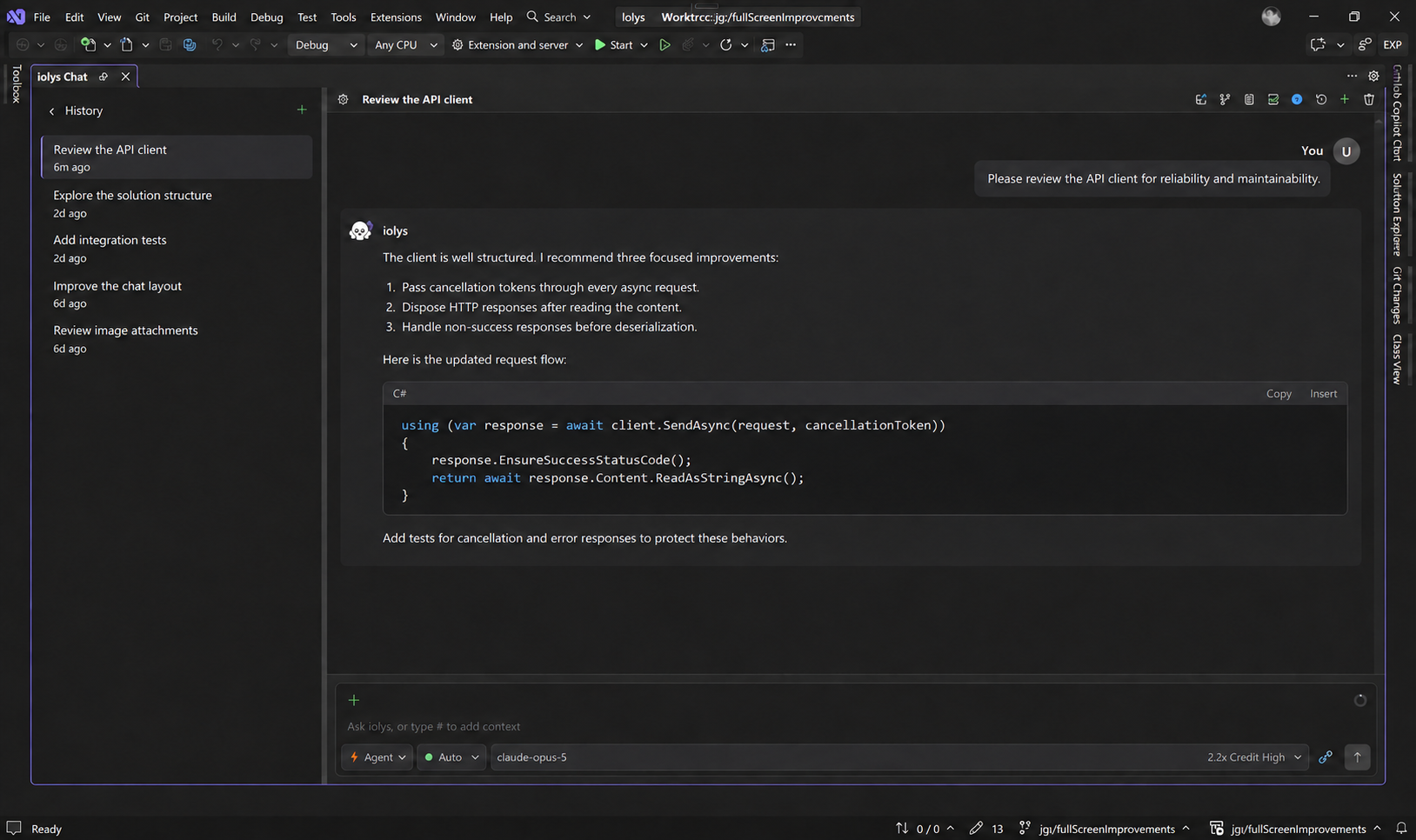
History keeps earlier tasks beside the active conversation. Task names and conversation content are examples.
Choose the provider and model from the composer. Select Agent for implementation or Plan for investigation and planning. Plan restricts ordinary editing tools; builds, tests, and provider-native tools have additional rules described in Permissions. A custom agent can provide a reusable role and tool selection.
Press Enter to send a message and Shift+Enter to insert a line break. Use Stop generating to cancel the active response. Cancellation does not undo changes already applied; use the review controls to inspect them.
Send follow-ups while the agent works
You can submit another message while a turn is active. Queued messages appear above the composer and run after the current message.
The queue provides controls to:
- Reorder messages by dragging them or using the up and down buttons.
- Edit a queued message when the current draft and draft context attachments are empty.
- Delete a queued message, with an undo action for a removal.
- Retry a message when its queue entry offers Retry.
- Send a queued message as guidance to the active turn with Steer, when available.
Use a follow-up for the next task step. Use steering for a correction that matters to work already in progress, such as “Preserve the existing method signature.” Context attached to the queued message stays with it during queue operations.
Read long conversations comfortably
Select Read in document area in the toolbar to give Chat the same space as a code editor. The composer, attachments, model picker, and tools remain usable. Press Escape or select Exit reading mode to restore the previous panel placement.
Hold Ctrl while scrolling over the conversation to zoom from 75% to 200%. With keyboard focus in the conversation, use Ctrl+Plus, Ctrl+Minus, and Ctrl+0 to adjust or reset zoom. Zoom preferences are saved locally.
Scrolling up pauses automatic following so you can read earlier messages. Returning to the bottom or sending a message resumes following new content. The chevron beside Changes collapses its file list without dismissing the changes.
Copy a message
Select Copy message beside a reply or your own message to copy its text. The latest message keeps its copy button visible; hover over an earlier message to reveal its time and copy action.
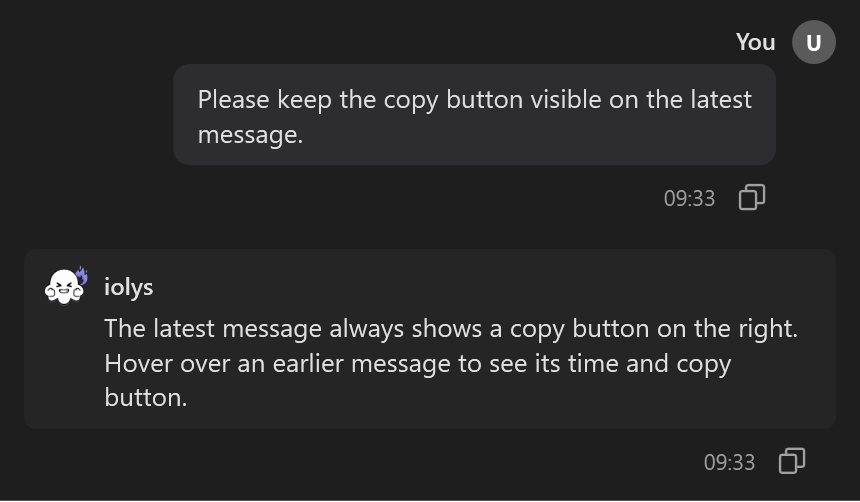
The copy action belongs to the individual message. This example shows the earlier message while hovered.
Continue with a handoff
Use a handoff when a new conversation needs the current discussion:
- Wait for the active turn to finish.
- Open Settings > Save handoff. iolys writes a readable
context_handoff.mdfile and reports its location. - Choose Settings > Load handoff and select the file.
- Review the new conversation's draft, add your next request, and send it.
Loading starts a new conversation and places the handoff in the composer; it does not send automatically. Saving uses the same filename, so preserve an earlier handoff under another name if you need both. The file contains conversation text: review it before sharing or committing it.