Your first task
Start with one small change in a solution you know. This walkthrough uses an API client as an example, but the same steps work for a bug fix, a test, or a focused refactor.
First, install iolys and connect a provider.
1. Open the conversation
Open your solution and select View > Iolys Chat. In the composer, select the provider and model you want to use. If the selected model offers reasoning effort, choose one of its available levels.
Use New Thread when you want a separate task. Give each task one clear objective so its conversation and changes are easier to review later.
2. Attach the relevant code
Open the file you want to discuss. Select a method, then use + > Selection in the composer. The context chip identifies the captured selection and its file.
You can also right-click in the Visual Studio editor and use iolys actions > Add Selection to Chat. Adding context preserves your draft and does not send the message.
For a file reference, use + > Active document, or type # to search for a file. See Files, images, and context for the differences between these options.
3. Investigate in Plan mode
Select Plan and ask for a concrete assessment:
Inspect this API client and its tests. Explain how to add cancellation support
without breaking existing callers. Identify the files that would need to change.
Plan mode supports investigation while restricting workspace-changing operations. Read the proposed approach and answer any clarification prompts.
4. Implement in Agent mode
Select Agent. For a first task, choose Interactive permissions so you can inspect requests to edit files or run commands.
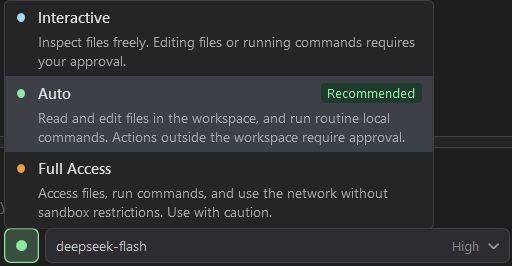
Open the permission picker beside the model controls and choose Interactive for this walkthrough.
Implement the cancellation change we discussed. Keep the existing public API
compatible. Add a focused regression test and run the relevant tests.
iolys shows the agent's tool activity as it works. When an approval request appears, check the action and its scope before choosing an option. You can use Stop generating to cancel active work.
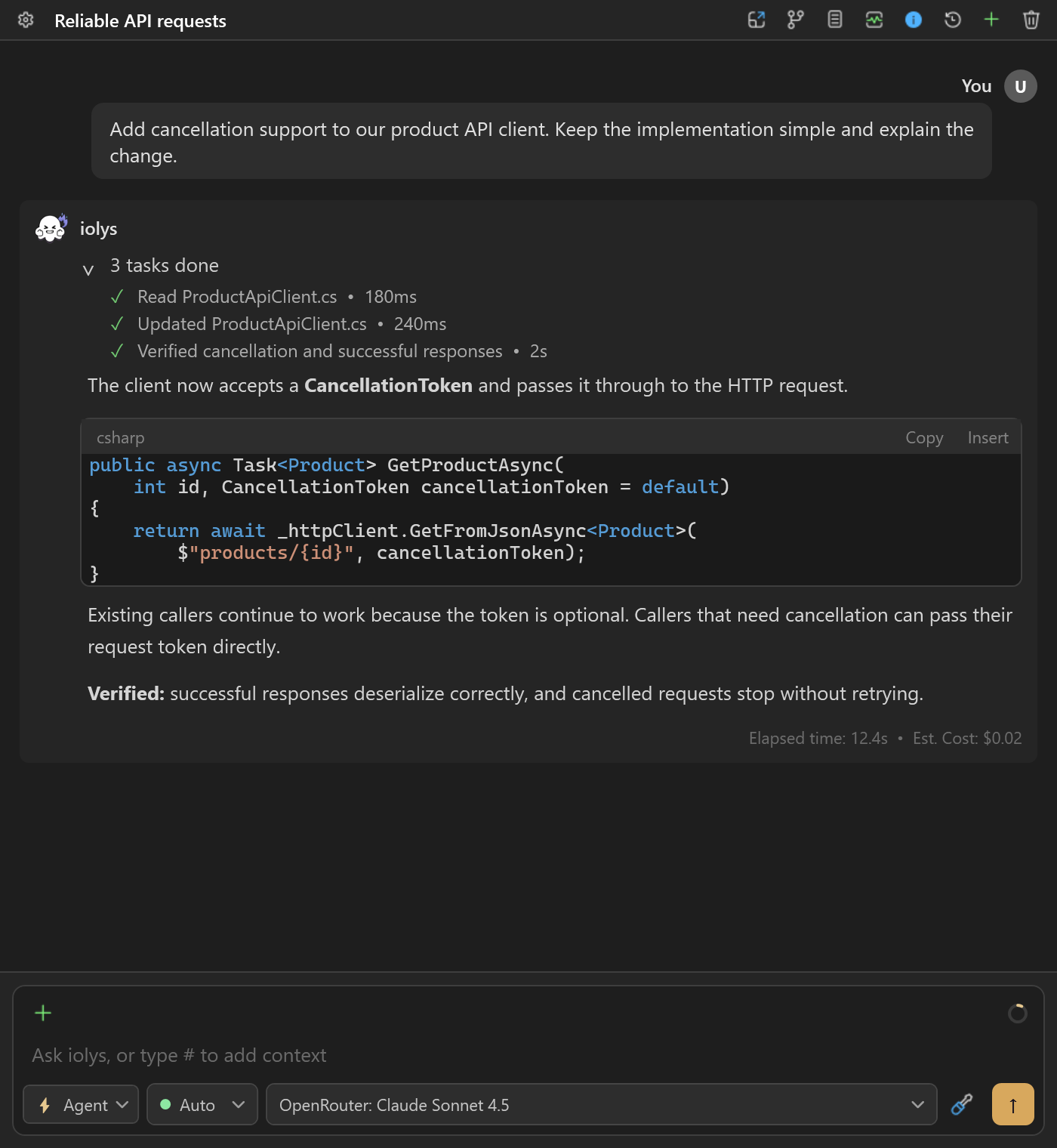
Read the tool activity and the explanation together. This example illustrates the workflow; verify the actual changes and tests in your solution.
5. Review the result
Expand Changes and open View diff for each file. Check the code and the reported build or test results. Ask for a follow-up when something needs adjustment:
The cancellation token also needs to reach the retry delay. Update that path
and test cancellation during the delay.
Use Undo this change for a reversible file change, or Settings > Rollback last changes for the tracked group. Keep dismisses the changes list; it does not create a Git commit. See Review and undo changes.
Continue from here
Reopen the task from History when you return. For repeatable instructions, explore skills and custom agents. For independent tasks running at the same time, create parallel workspaces.