Kiro
Use Kiro's managed CLI from iolys to work with your Kiro account, shared workspace tools, image attachments, and reported credits.
Set up Kiro
Open Manage Models, select Add Provider, and choose Kiro.
Install Kiro CLI using the provider's version controls.
Sign in with the managed executable in PowerShell:
$kiroCli = Join-Path $env:LOCALAPPDATA 'Iolys\Providers\KiroCli\Cli\LocalApp\Kiro-Cli\kiro-cli.exe'
& $kiroCli login
& $kiroCli whoami
Complete Kiro's sign-in instructions, then return to iolys and select Connect.
Select a discovered model in Chat and send a message.
Connect does not launch Kiro login. It reconnects using existing CLI credentials. If the path above is absent, check the managed Iolys\Providers\KiroCli\Cli directory: older installations can place the executable directly there. A system CLI on PATH does not replace the managed executable.
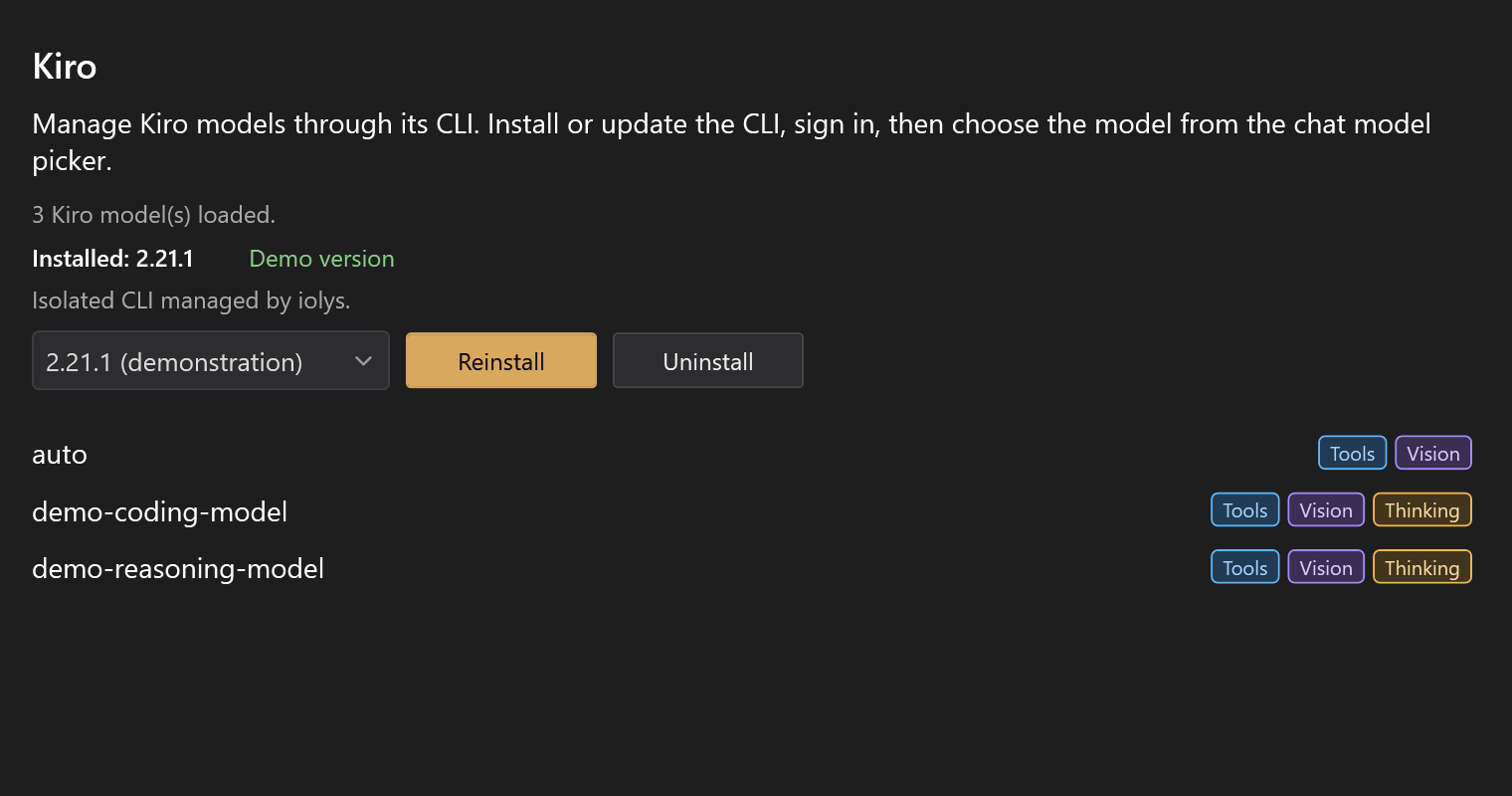
Illustrative models and versions.
Models and images
Use the model picker for current model and effort choices. Effort options can appear after capability discovery finishes. An unsupported or rejected effort blocks the prompt rather than silently applying a different value.
Attach images directly in the composer when Vision is available. Kiro's image capability comes from the live CLI connection. PNG, JPEG, GIF, BMP, and WebP are accepted locally, subject to file and encoded payload limits. The shared encoder can resize supported images for transport.
The iolys read_image tool is hidden for Kiro because this integration does not support image results from MCP tools. Attach the image itself rather than asking a tool to open it.
Native tools and permissions
Kiro exposes five native tools: Knowledge, Subagent, Use AWS, Fetch URL, and Web Search. They cannot be disabled individually in the session picker. AWS operations still depend on your AWS configuration and permissions.
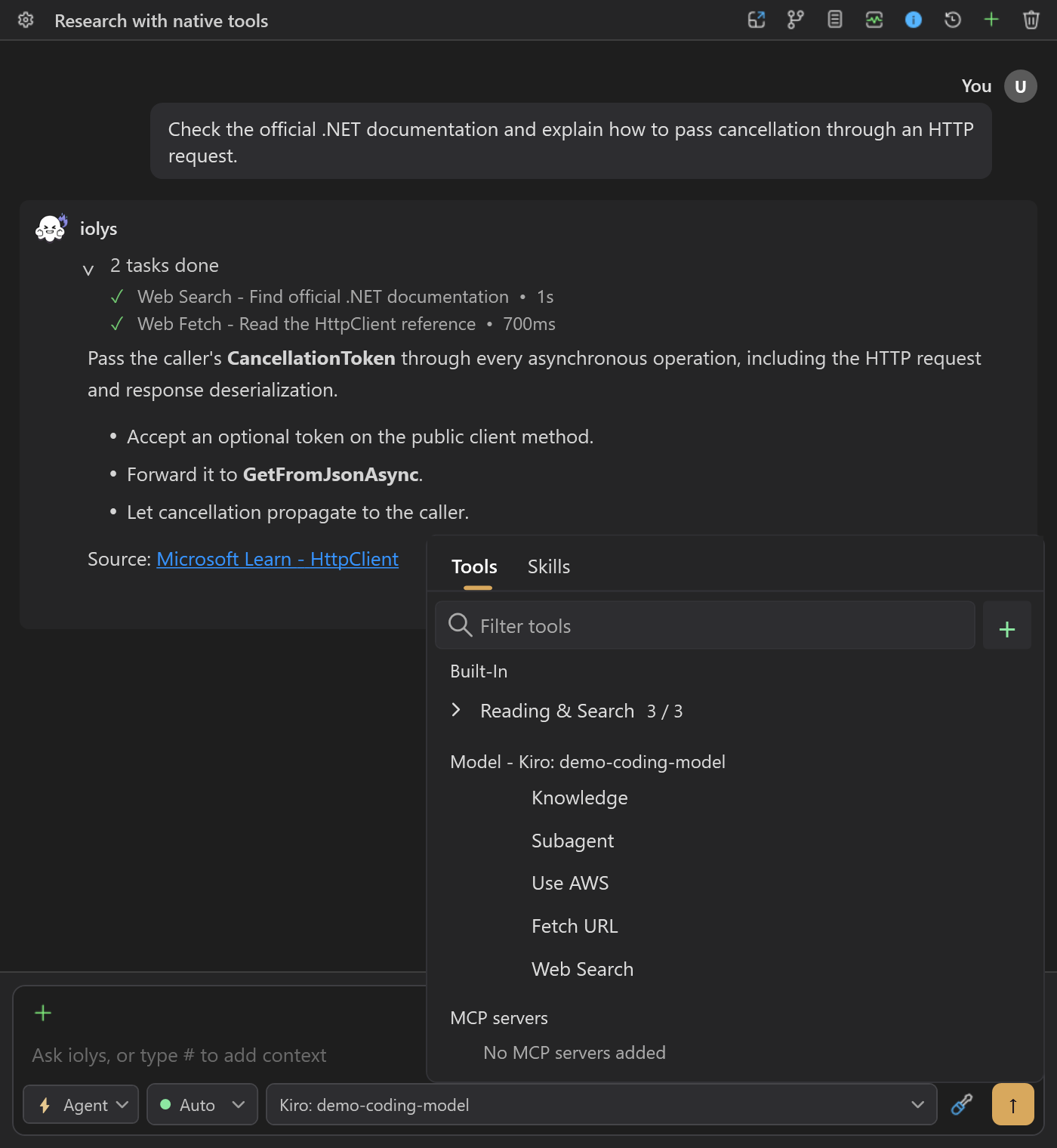
Kiro's five native tools are listed without individual switches. The surrounding conversation is a demonstration.
Shared iolys tools follow your selected agent, mode, and permissions. Native Kiro permission requests are a separate path and appear in the permission UI. Plan mode restricts iolys tools but does not guarantee that every native Kiro action is read-only. Review native requests accordingly.
Project skills use the shared .agents/skills directory through a Kiro compatibility link. A real directory already occupying .kiro/skills is preserved and can prevent that link from being created.
Usage and maintenance
Open Usage for the account's credit consumption, limit, plan, and reset label when reported. Completed turns can also show provider-reported credits. Credits are not dollars, and missing metering does not mean a free request. See usage and context.
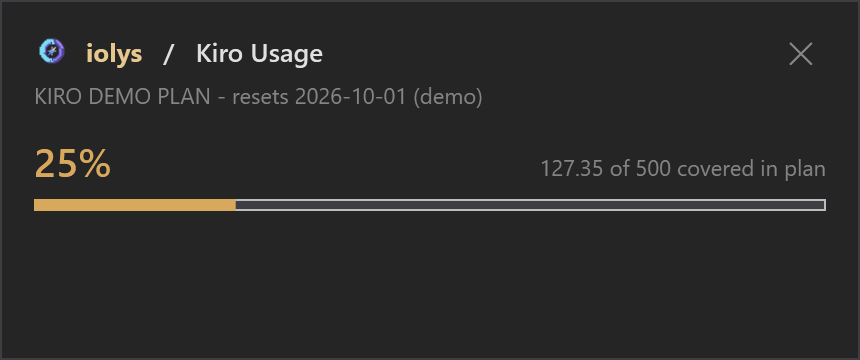
Compare consumed credits with the plan limit. This example uses a fictional plan and credit values.
Update or reinstall from the managed version controls. Uninstalling this managed CLI does not sign out the normal Kiro profile or remove a separate system installation.
Troubleshooting
| Problem | Action |
|---|---|
| Connect does not open a browser | Run the managed executable's login, verify whoami, then Connect. |
| No models appear | Verify sign-in, managed version, and connectivity; refresh the catalog. |
| Image tool is missing | Attach the image directly; read_image is intentionally unavailable. |
| Native tool checkbox cannot be changed | Those five tools have fixed inclusion in this integration. |
| Project skills are missing | Check for a conflicting .kiro/skills directory. |