Local AI with llama.app in Visual Studio 2022 and 2026
Availability: llama.app support is planned for Iolys 2026 November Update 3.
With llama.app running on your workstation, iolys sends your prompt and its conversation context to the server on that same workstation. The model generates the reply there and returns it to Visual Studio. If you select your own remote GPU server instead, iolys sends the prompt and context to that machine over the network. The GPU server runs the model and sends back the reply.
Hugging Face lets you search for models and download their GGUF weights to the selected server. Browsing either model catalog, downloading weights, and using enabled external tools can use the network even when inference runs on your workstation.
Install iolys for Visual Studio
Connect and run your first model
Install llama.app and start its server on your workstation.
In the iolys chat model picker, open Manage Models → Add Provider → llama.app.
Enter an Instance name such as
local, set Server URL tohttp://127.0.0.1:9931/v1, and add the provider. You can connect before you have installed any models.Open Hugging Face, enter a model name, and select Search. Choose a GGUF repository. Under Quantization, pick a version of the weights and select Download. The size shown is the space the file occupies on disk. Memory use also depends on the context length. You can also pick a model from the curated llama.app catalog.
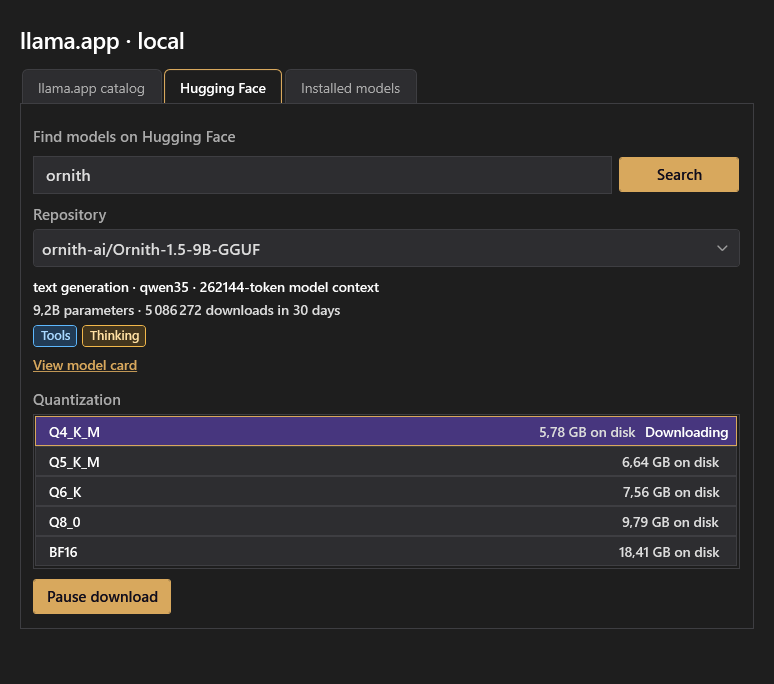
In this example, Q4_K_M is downloading to the server named local. The other rows show the disk sizes of alternative quantizations of the same model.
When the download finishes, open Installed models on that server and select Load. If the server offers several context presets, choose a Context length before loading.
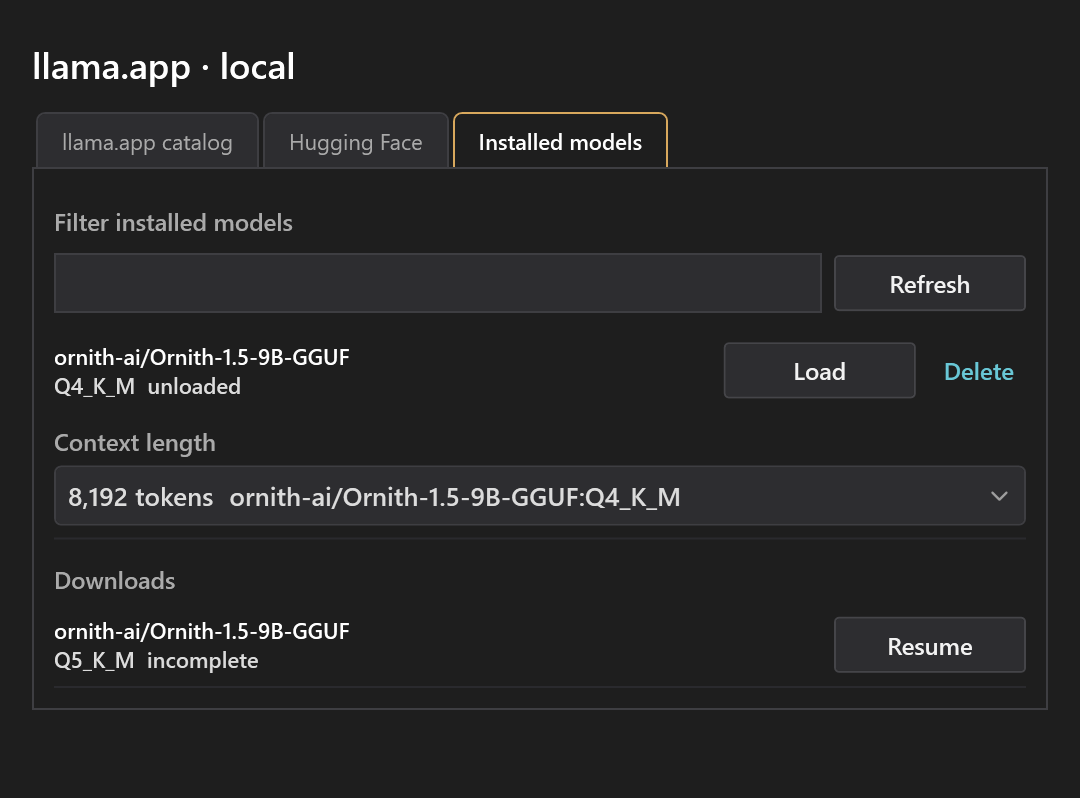
In this example, Q4_K_M is ready to load with the selected 8,192-token context. Choose Resume to finish downloading Q5_K_M.
Return to the chat model picker, select the model under llama.app · local, and send a message.
Identify a server and free its memory
To add a second machine, repeat the connection steps with an instance name such as office-gpu and that server's reachable HTTP or HTTPS address. Each server has its own downloads and loaded models.
Open llama.app in the chat header, select the named server, and check the address displayed in the menu. This identifies the machine even when both servers have a model with the same name. Under In memory, choose Unload to free memory on that server and keep the weights on disk. To use the model again, choose Load under Installed, not loaded. Use Refresh to check the selected server's inventory.
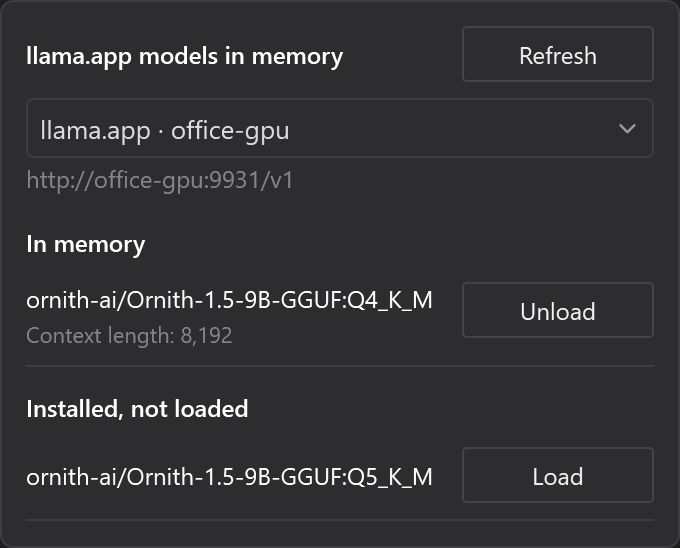
The address under the server name identifies the example GPU machine, http://office-gpu:9931/v1. Choosing Unload here releases Q4_K_M from that machine's memory.
Choose a vision model and ask about a screenshot
Before downloading, look for Vision in the Hugging Face tab. iolys shows this badge when the repository has a vision or image-text-to-text tag. For an installed model, iolys checks whether the selected llama.app server lists image in the model's architecture.input_modalities. The other badges describe separate capabilities. Tools indicates function calling and Thinking indicates reasoning support.
In the iolys chat model picker, choose a model marked Vision on the server you want to use. Paste a screenshot of a Visual Studio error into the composer, check the attachment, and ask “What does this error mean?” When you send the message, the image and your question go together to the selected llama.app server. With the local connection, the model analyzes the screenshot on your workstation. With a remote GPU connection, the model analyzes it on that machine.
Choose a reasoning effort
Select the model in the chat picker and open Effort if it appears. The menu lists the levels the model advertises, for example low and high. Keep the default to let the llama.app server choose its usual behavior. iolys omits the effort setting from that request.
For loaded or sleeping models, iolys reads chat_template_caps.reasoning_effort_levels from the server without triggering a model load. A model can show Thinking even when it advertises no adjustable levels. In that case, the picker has no Effort selector.
Use tools, skills, and MCP
Choose a model with Tools support for function calling. For example, enable the file-reading tool and ask the model to explain a class in your solution. The current chat mode, agent profile, and permissions determine which workspace and MCP tools it can call. See Tools and capabilities, Permissions and modes, and MCP servers.
With automatic skill activation enabled, a model that supports tool calls can request a project skill through the skill tool. To load the instructions yourself, type /skill:<name> in chat. This also works with text-only models. See Agent Skills.